
Setting Up Pi-hole for DNS and Homelab Wildcard Domains
How to deploy Pi-hole for network-wide DNS, use it for homelab wildcard domains, and configure UniFi as a backup DNS.
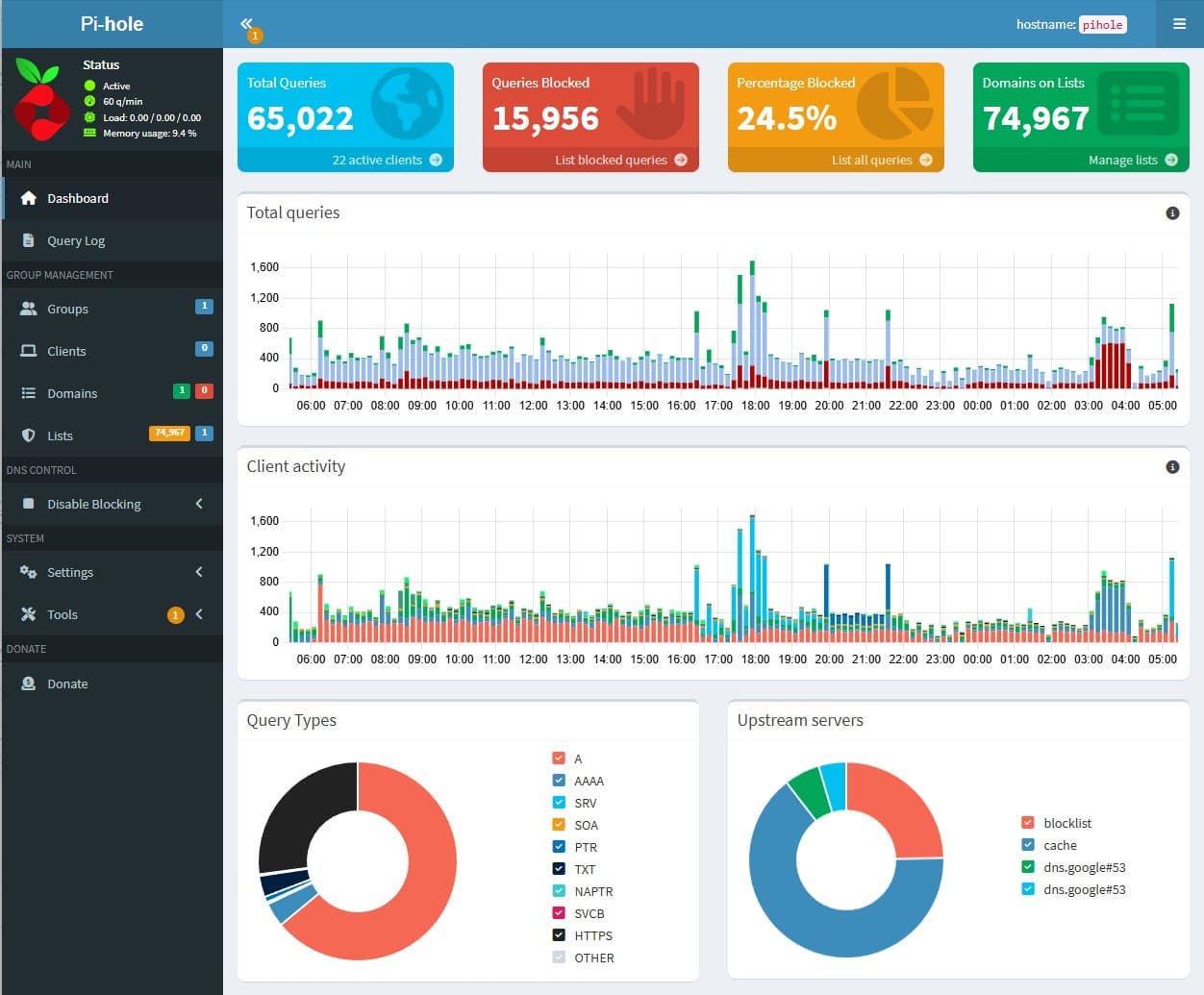
Important: Pi-hole DNS Interface Setting
If you want Pi-hole to respond to DNS queries from multiple subnets, make sure to set the DNS interface correctly:
- In the Pi-hole web UI, go to Settings → DNS → Interface listening behavior (or similar, depending on version).
- Select Respond only on interface ens18 (replace
ens18with your network interface name as shown byip a). - Save and restart Pi-hole DNS.
This ensures Pi-hole will answer DNS queries from all routed subnets on that interface. If set incorrectly, queries from other VLANs/subnets may be ignored.
Introduction
In this post, I'll walk through setting up Pi-hole as your primary DNS server for your home network and homelab. We'll cover deploying Pi-hole, configuring wildcard DNS for your homelab services, and setting up UniFi as a backup DNS resolver. (We'll skip the ad-blocking details and focus on DNS and network integration.)
Related posts:
Why Pi-hole?
- Centralized DNS for your entire network
- Easy to manage and monitor DNS queries
- Supports custom DNS records and wildcards for homelab
- Can be used with UniFi for seamless network integration
1. Deploying Pi-hole
Setting Up the VM
For best results, create a dedicated VM for Pi-hole on your Proxmox host:
- OS: Ubuntu Server 22.04 LTS (minimal install recommended)
- vCPU: 1 (2 if you expect heavy DNS traffic)
- In Proxmox, set this as 1 socket with 1 core (for most setups), or 1 socket with 2 cores if you want to allocate 2 vCPUs. For Pi-hole, 1 vCPU is usually plenty.
- RAM: 512MB–1GB
- Disk: 8–16GB (SSD preferred, but not required)
- Network: Bridged to your main LAN or VLAN (static IP recommended)
VM Pre-configuration:
-
Install Ubuntu Server and apply all updates:
bash code-highlightsudo apt update && sudo apt upgrade -y -
Set a static IP address (either via Netplan or your DHCP server reservation).
- Netplan (Ubuntu 22.04+):
-
Edit the Netplan config (often
/etc/netplan/50-cloud-init.yaml,/00-installer-config.yaml, or/01-netcfg.yaml):yaml code-highlightnetwork: version: 2 ethernets: ens18: dhcp4: no addresses: [192.168.10.20/24] routes: - to: default via: 192.168.10.1 nameservers: addresses: [1.1.1.1,8.8.8.8] search: [infra.home]Replace
ens18with your VM's network interface name (check withip a).Note: If you use
gateway4, you may see a deprecation warning. Theroutes:section above is the modern, recommended approach. -
Apply the config:
bash code-highlightsudo netplan apply
-
- DHCP Reservation: Set a static lease for your VM’s MAC address in your router or DHCP server.
- Netplan (Ubuntu 22.04+):
-
Set the hostname (e.g.,
pihole):bash code-highlightsudo hostnamectl set-hostname pihole -
Optionally, install OpenSSH Server for remote management:
bash code-highlightsudo apt install openssh-server -
Reboot to ensure all updates and network settings are applied.
-
(Recommended) Install Proxmox guest utilities for better integration:
bash code-highlightsudo apt install qemu-guest-agent sudo systemctl enable --now qemu-guest-agentThis allows Proxmox to communicate with the VM for features like clean shutdowns and IP reporting.
Note: In Proxmox, you must also enable the "QEMU Guest Agent" option in the VM's Options tab. Shut down the VM, set this option to "Yes", then start the VM again. Without this, the guest agent service will fail to start because the required virtual device is missing.
Once your VM is ready and networked, proceed with the Pi-hole installation below.
Basic Install (on Ubuntu/Debian)
curl -sSL https://install.pi-hole.net | bash
Follow the prompts to set your upstream DNS (Cloudflare, Google, etc.) and web admin password.
During the Pi-hole installer, here’s what to choose for this setup:
- Confirm your static IP is detected (e.g., 192.168.10.20).
- Choose your preferred upstream DNS provider (Cloudflare, Google, etc.).
- Enable the web admin interface and web server (unless you plan to use another web server).
- Enable query logging if you want to see DNS queries in the web UI.
- Enable IPv6 only if your network uses it.
- For FTL privacy mode, the default (Show Everything) is best for homelab use, so you can see which device is making which request. You can change this later in the web UI.
- All other defaults are safe; you’ll configure wildcard and local DNS after install.
2. Configure Pi-hole for Your Network
- Assign a static IP to your Pi-hole server (e.g., 192.168.10.20)
- Ensure the Pi-hole IP is reachable from all devices
- Access the web UI at
http://192.168.10.20/admin
3. Set Up Wildcard DNS for Homelab
To resolve all *.lab.local domains to a specific IP (e.g., your homelab reverse proxy):
- SSH to your Pi-hole server
- Edit
/etc/dnsmasq.d/02-homelab-wildcard.conf:text code-highlightaddress=/lab.local/192.168.30.200 - Reload Pi-hole DNS:
bash code-highlight
sudo pihole reloaddns
Now, any request to anything.lab.local will resolve to 192.168.30.200.
4. Configure UniFi to Use Pi-hole (with Backup)
- In the UniFi Controller, go to Settings → Networks → [Your LAN] → DHCP Name Server.
- Enter your Pi-hole IP as the primary DNS (e.g.,
192.168.10.20). - Enter your UniFi gateway/router IP as the secondary DNS (e.g.,
192.168.10.1).
This way, if Pi-hole is down, clients will fall back to UniFi’s built-in DNS resolver.
5. Test Your Setup
- Set a client to use Pi-hole as DNS and try resolving a wildcard domain (e.g.,
test.lab.local) - Check Pi-hole’s query log to confirm requests are being handled
- Disconnect Pi-hole and confirm fallback to UniFi DNS works
Conclusion
Troubleshooting & Lessons Learned
Wildcard DNS Issues in Pi-hole
If you use Pi-hole’s dnsmasq custom configs for wildcard DNS (e.g., address=/k8s.home/192.168.30.64), be aware:
- Wildcard records may not work if you set restrictive interface or listen-address options in files like
99-custom.conf. - For best results, avoid unnecessary interface restrictions. If you must restrict, use only
interface=ens18and test with all other restrictions commented out. - If wildcards still don’t resolve, try adding specific records via the Pi-hole UI as a workaround.
- Always restart Pi-hole DNS after changes:
sudo systemctl restart pihole-FTL
Netplan Static IP Configuration
When setting a static IP on Ubuntu, use the routes: section instead of the deprecated gateway4 option:
routes:
   - to: default
      via: 192.168.10.1
This avoids deprecation warnings and ensures future compatibility.
Pi-hole DNS Interface Setting
For multi-subnet or VLAN setups, set Pi-hole’s DNS interface to Permit all origins or Respond on all interfaces in the web UI. This ensures DNS queries from all routed networks are answered.
General Tips
- Double-check for typos and encoding issues in custom config files.
- If direct records work but wildcards do not, it’s likely a config or Pi-hole version limitation.
- Use
digornslookupfrom the Pi-hole host to test DNS resolution directly.
With this setup, you have a robust, flexible DNS solution for your home and homelab, with wildcard support and UniFi as a backup. Enjoy easier service discovery and centralized DNS management!
Real-World Platform Engineering in Your Inbox
One email a week. Deep dives on Kubernetes, homelab builds, platform tooling, and building in public from someone who does this for a living.
No fluff, no sponsored blasts. Unsubscribe any time.
Reach Engineers Who Build Platforms
My readers are Staff Engineers, Platform Engineers, and DevOps/SRE leads — the people who evaluate, buy, and recommend infrastructure tooling at their companies.
- → Sponsored posts, newsletter placements, and resource page features available
- → Audience: platform engineering, Kubernetes, GitOps, and homelab builders
- → Formats tailored to technical audiences — no generic ad copy
Related Posts
Kubernetes on Proxmox: DNS and LoadBalancers with MetalLB
Add real DNS and LoadBalancer services to a homelab Kubernetes cluster using MetalLB and local DNS integration.
Proxmox for a Realistic Kubernetes Homelab (VLANs, Networking, and Gotchas)
How I set up Proxmox and UniFi networking to support a production-like Kubernetes homelab, including VLANs, firewall pitfalls, and lessons learned.
Why I Switched to UniFi for My Homelab (And What It Enabled)
How replacing consumer networking gear with UniFi unlocked VLANs, better visibility, and a production-like foundation for Proxmox and Kubernetes.