
Kubernetes on Proxmox: DNS and LoadBalancers with MetalLB
Add real DNS and LoadBalancer services to a homelab Kubernetes cluster using MetalLB and local DNS integration.
📚 Part of: Kubernetes Homelab
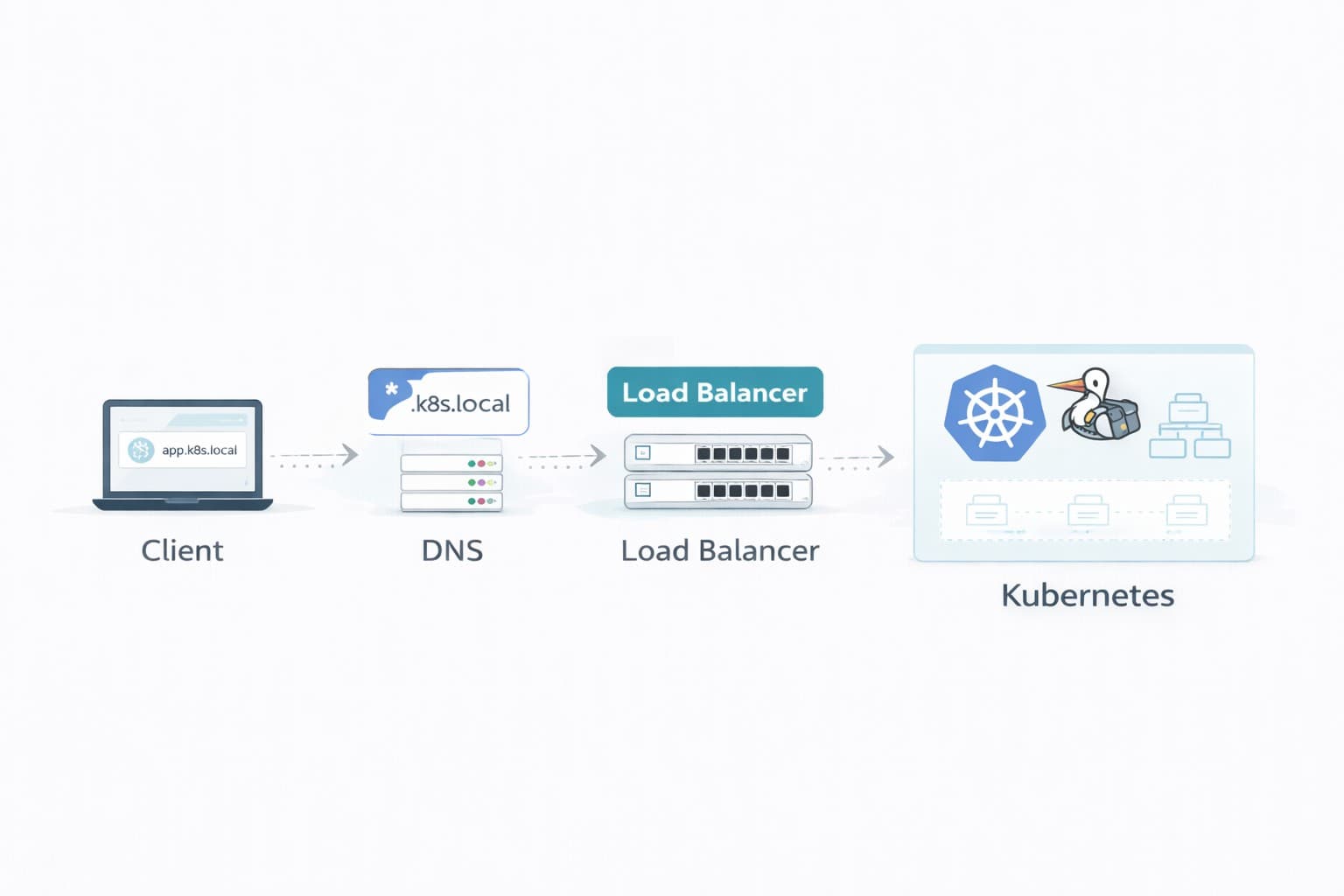
Overview
With Traefik and the Gateway API in place, traffic can now enter the cluster cleanly. However, access still relies on NodePorts and manual hosts file entries.
This works for early testing, but it doesn’t scale well or feel production-like.
In this post, we’ll introduce:
- MetalLB to enable
LoadBalancerservices - Local DNS so applications can be accessed via friendly hostnames
By the end, you'll be able to reach apps at URLs like http://whoami.k8s.home without specifying ports or editing your hosts file.
Why MetalLB?
In cloud Kubernetes, a managed load balancer is usually available. In a homelab, we typically don’t have that.
MetalLB fills the gap by providing:
- Real Kubernetes
LoadBalancerservices - Stable IPs on your LAN/VLAN
- A "cloud-like" service exposure model
Cluster Assumptions
- Traefik is installed and working
- Gateway API routes are functional
- Nodes share the same Layer 2 network (same VLAN/subnet)
- You have a small unused IP range available for MetalLB
Choose an IP Address Pool (Very Important)
MetalLB needs a block of IPs it can hand out as “external” service IPs.
Pick a range that:
- Is on the same subnet as your Kubernetes nodes (for me: VLAN 30)
- Is not used by DHCP
- Is not already assigned to any devices
- Is reachable from your workstation
UniFi Example (My Setup)
If you’re using UniFi, you can find your DHCP range here:
- UniFi Network → Settings → Networks → (Your VLAN/Network) → DHCP
- Note the DHCP Range / DHCP Lease Pool
Then choose a range outside that DHCP pool.
Example (VLAN 30 is 192.168.30.0/24):
- DHCP hands out:
192.168.30.50 - 192.168.30.199 - MetalLB pool:
192.168.30.200 - 192.168.30.210
Generic Router / Non‑UniFi Setup
If you’re not using UniFi:
- Check your router’s DHCP settings for the lease range
- Pick a range outside that pool
- Optionally reserve the range so the router never assigns it
Example:
192.168.30.200-192.168.30.210
Install MetalLB
MetalLB “native mode” uses CRDs and is the recommended approach for new installs.
kubectl apply -f https://raw.githubusercontent.com/metallb/metallb/v0.15.3/config/manifests/metallb-native.yaml
Verify the pods are running:
kubectl get pods -n metallb-system
Configure the MetalLB IP Pool (L2 Mode)
In most homelabs, Layer 2 mode is the simplest option. MetalLB will advertise service IPs on your LAN so other devices can reach them.
Create ip-pool.yaml:
cat <<EOF > ip-pool.yaml
apiVersion: metallb.io/v1beta1
kind: IPAddressPool
metadata:
  name: homelab-pool
  namespace: metallb-system
spec:
  addresses:
    - 192.168.30.200-192.168.30.210
---
apiVersion: metallb.io/v1beta1
kind: L2Advertisement
metadata:
  name: homelab-l2
  namespace: metallb-system
spec:
  ipAddressPools:
    - homelab-pool
EOF
Apply it:
kubectl apply -f ip-pool.yaml
Verify:
kubectl get ipaddresspools -n metallb-system
kubectl get l2advertisements -n metallb-system
You should see:
NAME           AUTO ASSIGN   AVOID BUGGY IPS   ADDRESSES
homelab-pool   true          false             ["192.168.30.200-192.168.30.210"]

NAME         IPADDRESSPOOLS     IPADDRESSPOOL SELECTORS   INTERFACES
homelab-l2   ["homelab-pool"]
This confirms:
- IPAddressPool is configured with your IP range (192.168.30.200-210)
- L2Advertisement is active and will advertise IPs from the homelab-pool
- AUTO ASSIGN is true, meaning MetalLB will automatically assign IPs to LoadBalancer services
Update Traefik to Use LoadBalancer
In Post 7, we used NodePort for simplicity. Now we can switch Traefik to a real LoadBalancer service.
Patch the Traefik service:
kubectl patch svc traefik -n traefik -p '{"spec":{"type":"LoadBalancer"}}'
Verify Traefik receives an external IP:
kubectl get svc -n traefik
You should see an EXTERNAL-IP from your MetalLB pool. Save that IP — we’ll use it for DNS next.
Add Local DNS (No More hosts files)
Now that Traefik has a stable IP, we can create DNS records so *.k8s.home resolves properly.
Domain Suffix Choice: Avoid using .local as your domain suffix if you're using Ubuntu/systemd-resolved on your nodes. systemd-resolved treats .local as an mDNS domain and will refuse to forward DNS queries, resulting in SERVFAIL errors. Use .home, .lab, or .internal instead.
Option A: UniFi Local DNS Records
If you're using UniFi Dream Machine (UDM/UDM Pro) or UniFi Gateway, you can add local DNS records directly.
Step-by-step for UniFi:
-
Log into UniFi Network Controller (typically at https://unifi.ui.com or your local controller IP)
-
Navigate to DNS Records (path varies by Network version):
- Network 9.4+: Settings → Policy Table → Create New Policy → DNS
- Network 9.3: Settings → Policy Engine → DNS → Create DNS Record
-
Select the Type: Choose Host (A) (maps a domain name to an IPv4 address)
-
Fill in the DNS record:
- Domain Name:
whoami.k8s.home - IP Address:
192.168.30.200(your Traefik LoadBalancer IP) - (Optional) Adjust TTL if needed
- Domain Name:
-
Click Add
-
Repeat for each service you want to expose, or...
UniFi Limitation: UniFi does NOT support wildcard DNS entries (*.k8s.home) in the built-in DNS. You must create individual records for each hostname (e.g., whoami.k8s.home, app1.k8s.home, etc.) or use Option B (Pi-hole/AdGuard).
Alternative - Using dnsmasq on UniFi (Advanced):
If you have SSH access to your UniFi gateway, you can add wildcard DNS via dnsmasq:
# SSH to your UniFi gateway
ssh root@<gateway-ip>

# Add wildcard entry to dnsmasq
echo "address=/.k8s.home/192.168.30.200" >> /etc/dnsmasq.d/k8s.conf

# Restart dnsmasq
/etc/init.d/dnsmasq restart
This method may not persist across UniFi gateway firmware updates. For a permanent solution, consider Option B.
Option B: Pi-hole / AdGuard Home (Recommended for Flexibility)
If your router/gateway doesn't support custom DNS records, or you want wildcard support, run Pi-hole or AdGuard Home and set it as the DNS server for your network.
Why Pi-hole/AdGuard?
- ✅ Supports wildcard DNS (
*.k8s.home) - ✅ Works with any router/gateway
- ✅ Provides ad-blocking as a bonus
- ✅ Survives firmware updates
- ✅ Web UI for easy management
Quick setup:
-
Install Pi-hole (on a Raspberry Pi, VM, or container):
bash code-highlightcurl -sSL https://install.pi-hole.net | bash -
Log into Pi-hole web interface (typically
http://<pi-hole-ip>/admin) -
Go to Local DNS → DNS Records
-
Add a wildcard entry:
- Domain:
k8s.home - IP Address:
192.168.30.200(your Traefik LoadBalancer IP) - Check "Add wildcard" option if available, or manually add:
*.k8s.home
- Domain:
-
Update your router's DHCP settings to use Pi-hole as the DNS server:
- Primary DNS:
<pi-hole-ip> - Secondary DNS:
8.8.8.8(or your ISP's DNS as fallback)
- Primary DNS:
-
Test from any device on your network:
bash code-highlightnslookup whoami.k8s.home # Should return 192.168.30.200
For UniFi users: In UniFi Controller, go to Settings → Networks → [Your LAN] → DHCP → DHCP Name Server and set it to Manual, then enter your Pi-hole IP.
Verify DNS Configuration
Before testing, confirm your clients are actually using the DNS server where you added the records.
Check What DNS Server You're Using
From your workstation/laptop:
Linux/Mac:
# Check DNS servers from your DHCP lease
cat /etc/resolv.conf

# If you see "127.0.0.53" (systemd-resolved), check the actual upstream DNS:
resolvectl status

# Or use nmcli (NetworkManager)
nmcli dev show | grep DNS
Ubuntu/systemd-resolved users: If /etc/resolv.conf shows nameserver 127.0.0.53, your system uses systemd-resolved as a local DNS cache. Run resolvectl status to see the real upstream DNS servers your system is using. Look for the "DNS Servers:" line under your network interface.
Windows (PowerShell):
Get-DnsClientServerAddress -AddressFamily IPv4
You should see either:
- Your UniFi Gateway IP (e.g.,
192.168.30.1) if using Option A - Your Pi-hole IP if using Option B
- If you see
8.8.8.8,1.1.1.1, or other public DNS → clients are bypassing local DNS
Configure UniFi DHCP to Use Gateway DNS
If clients are using public DNS instead of your gateway, update your network settings:
- Go to Settings → Networks
- Select your network (e.g., VLAN 30)
- Scroll to DHCP → DHCP Name Server
- Ensure it's set to "Auto" (uses gateway as DNS) or "Manual" with your gateway/Pi-hole IP
- Click Apply Changes
Common Issue: If your nodes show public DNS servers like 1.1.1.1 or 8.8.8.8 instead of your gateway IP, the UniFi DHCP is handing out those servers. This often happens when:
- The "Auto" setting isn't working correctly
- Content filtering is enabled (which can override DNS settings)
- Gateway DNS is misconfigured
Solution: Either fix the DHCP Name Server setting in UniFi, or skip to Option B (Pi-hole) which is more reliable and supports wildcards.
After changing DHCP settings, renew leases on your nodes:
# Modern Ubuntu (22.04+) with netplan/systemd-networkd
sudo netplan apply
# OR
sudo systemctl restart systemd-networkd

# Older systems with dhclient (if available)
sudo dhclient -r ens18 && sudo dhclient ens18

# Or simply reboot the node
sudo reboot

# After restart, verify the change
resolvectl status
# Should now show your gateway IP (e.g., 192.168.30.1) under "Current DNS Server"
Test DNS Resolution
Once DNS is configured, test that local records resolve:
# Test the specific record
nslookup whoami.k8s.home

# Should return your Traefik LoadBalancer IP (e.g., 192.168.30.200)
# If you get "NXDOMAIN" or no response, DNS isn't working yet
If DNS isn't resolving:
-
Clear DNS cache on your client:
bash code-highlight# Ubuntu/systemd-resolved sudo resolvectl flush-caches # Or restart systemd-resolved sudo systemctl restart systemd-resolved # Verify DNS servers are still correct resolvectl status -
Verify the DNS record exists in UniFi:
- Go back to Settings → Policy Table (or Policy Engine) → DNS
- Confirm you see your
whoami.k8s.homerecord pointing to the correct IP - Try creating a test record with a different name to verify DNS is working
-
Test DNS directly against the gateway:
bash code-highlight# Query the UniFi gateway DNS directly (bypass systemd-resolved) nslookup whoami.k8s.home 192.168.30.1 # Or use dig dig @192.168.30.1 whoami.k8s.homeIf this works but regular
nslookup whoami.k8s.homedoesn't, it's a systemd-resolved caching issue (should be rare with.homedomain). -
Use /etc/hosts as a fallback:
If DNS continues to have issues, you can bypass it entirely by adding entries to
/etc/hosts:bash code-highlight# Add all your k8s services to /etc/hosts (survives reboots) echo "192.168.30.200 whoami.k8s.home" | sudo tee -a /etc/hosts # Repeat for each serviceThis bypasses DNS entirely and always works, but requires manual management.
-
Consider Pi-hole for wildcards:
If you're tired of adding individual DNS records, switch to Pi-hole (Option B) which supports wildcard entries like
*.k8s.home. -
Check UniFi Gateway DNS settings:
- Settings → Internet → WAN → DNS Servers
- Ensure the gateway can reach upstream DNS (like 8.8.8.8) for external queries
- Local DNS records require the gateway's DNS service to be functioning
-
Wait a few minutes - DNS changes can take time to propagate, especially if caching is involved
Validate End-to-End Access
If you kept the same whoami route from Post 7:
curl http://whoami.k8s.home
You should get a response without specifying a port.
Bonus: Expose the Traefik Dashboard
Traefik includes a built-in dashboard that shows routes, services, middlewares, and health status. Let's expose it via DNS.
Option A: Using Gateway API HTTPRoute
Create an HTTPRoute for the dashboard:
cat <<EOF | kubectl apply -f -
apiVersion: gateway.networking.k8s.io/v1
kind: HTTPRoute
metadata:
  name: traefik-dashboard
  namespace: traefik
spec:
  parentRefs:
  - name: main-gateway
    namespace: traefik
  hostnames:
  - traefik.k8s.home
  rules:
  - matches:
    - path:
        type: PathPrefix
        value: /
    backendRefs:
    - name: api@internal
      kind: TraefikService
      group: traefik.io
EOF
Option B: Using Traefik IngressRoute (Simpler)
If you prefer Traefik's native CRD:
cat <<EOF | kubectl apply -f -
apiVersion: traefik.io/v1alpha1
kind: IngressRoute
metadata:
  name: traefik-dashboard
  namespace: traefik
spec:
  entryPoints:
    - web
  routes:
  - match: Host(\`traefik.k8s.home\`)
    kind: Rule
    services:
    - name: api@internal
      kind: TraefikService
EOF
Add DNS Record
Add a DNS record pointing to your Traefik LoadBalancer IP:
- Domain:
traefik.k8s.home - IP:
192.168.30.200(your Traefik EXTERNAL-IP)
Access the Dashboard
Open your browser and navigate to:
http://traefik.k8s.home
You should see the Traefik dashboard showing:
- HTTP routers and services
- TCP/UDP services (if any)
- Middleware configurations
- Gateway API resources
- Health status
Security Note: The dashboard is now publicly accessible on your network. For production use, consider adding authentication middleware or restricting access by IP. We'll cover securing ingress routes with authentication in a future post.
Troubleshooting
No EXTERNAL-IP on the LoadBalancer Service
- Verify MetalLB pods are running
- Confirm your IP pool range is correct and unused
- Ensure your nodes are on the same L2 network / VLAN
- Check Proxmox VM firewall and guest firewall settings
MetalLB logs:
kubectl logs -n metallb-system -l app=metallb --tail=200
Can Resolve DNS But Can’t Reach the App
- Confirm DNS points to Traefik’s LoadBalancer IP
- Verify the Traefik service is still healthy
- Check your Gateway + HTTPRoute status
What’s Next
At this point, the cluster has:
- Networking (Calico)
- Storage (Longhorn)
- Ingress (Traefik + Gateway API)
- LoadBalancers (MetalLB)
- DNS-based access
Next post ideas:
- First real workload deployment (app + PVC + Gateway route)
- TLS with cert-manager (HTTPS for your apps)
- GitOps with Argo CD (manage the cluster from Git)
➡️ Next: Kubernetes on Proxmox – First Real Application Deployment
Real-World Platform Engineering in Your Inbox
One email a week. Deep dives on Kubernetes, homelab builds, platform tooling, and building in public from someone who does this for a living.
No fluff, no sponsored blasts. Unsubscribe any time.
Reach Engineers Who Build Platforms
My readers are Staff Engineers, Platform Engineers, and DevOps/SRE leads — the people who evaluate, buy, and recommend infrastructure tooling at their companies.
- → Sponsored posts, newsletter placements, and resource page features available
- → Audience: platform engineering, Kubernetes, GitOps, and homelab builders
- → Formats tailored to technical audiences — no generic ad copy
📚 Part of: Kubernetes Homelab
Related Posts
Kubernetes on Proxmox: GitOps Automation with ArgoCD
Implement GitOps workflows for automated, declarative deployments using ArgoCD - manage your entire homelab from Git
Kubernetes on Proxmox: Secure Your Apps with HTTPS and cert-manager
Add automatic HTTPS with Let's Encrypt certificates using cert-manager, securing your Kubernetes applications with trusted SSL/TLS.
Kubernetes on Proxmox: Deploying Your First Real Application
Deploy a complete stateful application using persistent storage, ingress routing, and DNS in your homelab Kubernetes cluster.