
Kubernetes on Proxmox: Persistent Storage with Longhorn
Installing Longhorn to provide persistent volumes for workloads running on a Kubernetes cluster hosted on Proxmox.
📚 Part of: Kubernetes Homelab
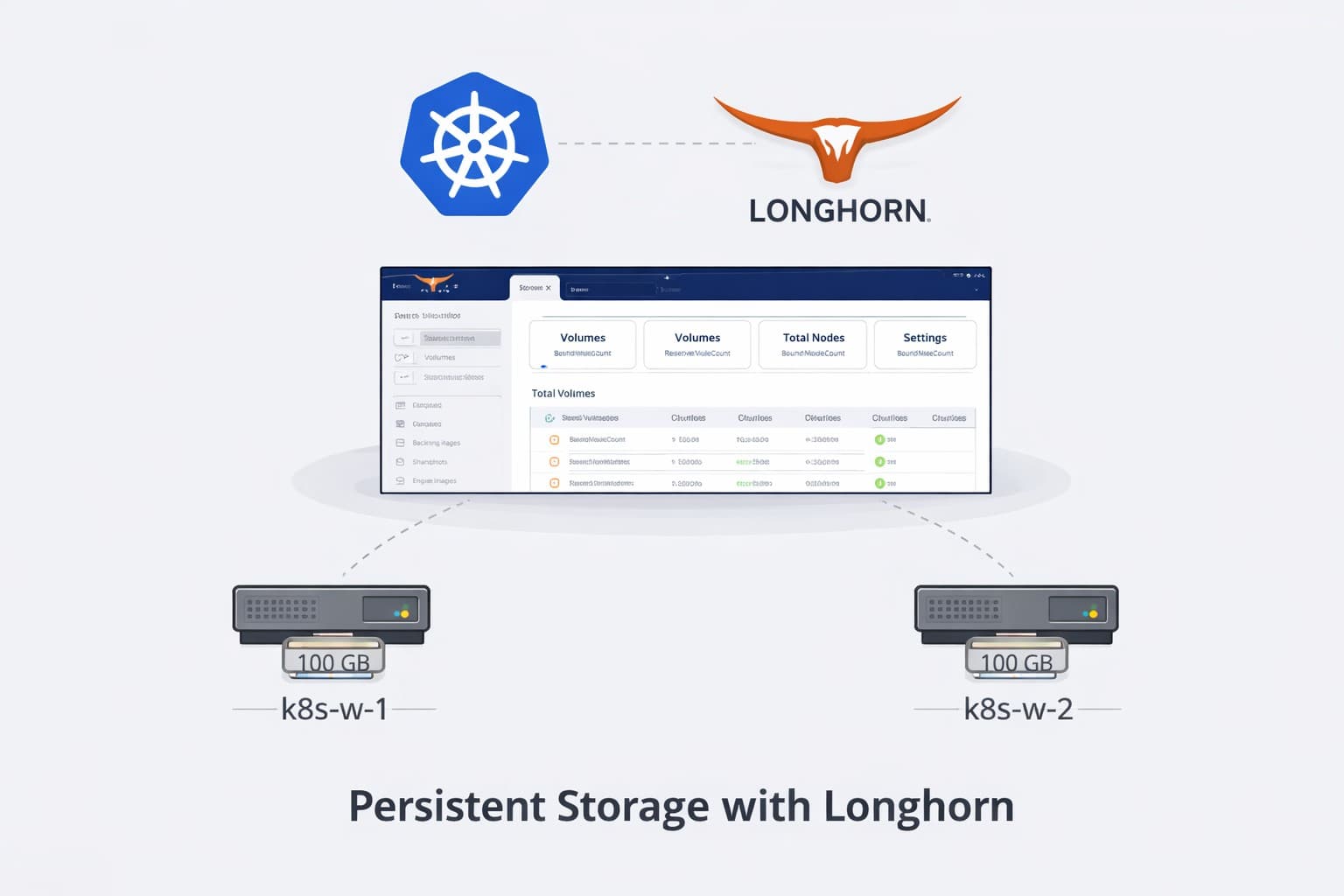
Overview
With the Kubernetes cluster bootstrapped and networking in place, the next critical component is persistent storage.
Kubernetes itself is stateless by default. To run real workloads—databases, applications, and stateful services—we need a reliable way to provision and manage persistent volumes.
In this post, we’ll deploy Longhorn, a cloud‑native distributed block storage system, and use it to provide PersistentVolumeClaims (PVCs) backed by local disks on our Proxmox worker nodes.
By the end of this post, you’ll have:
- Longhorn installed and running
- Dedicated worker‑node disks claimed by Longhorn
- A default StorageClass configured
- Persistent volumes working end‑to‑end
Why Longhorn?
Longhorn is a great fit for homelabs and small clusters because:
- It’s fully Kubernetes‑native
- No external storage appliance required
- Uses local disks efficiently
- Simple UI and operational model
- Supports replication and node failure scenarios
It also mirrors how storage works in many production environments, just at a smaller scale.
Storage Architecture: Separating OS and Data
Before we install Longhorn, let's talk about storage architecture.
Why separate storage disks?
In production Kubernetes clusters, you want to keep:
- OS/System disk: For the operating system, Kubernetes binaries, logs
- Data disk: For persistent volumes, application data, databases
This separation provides:
- Performance isolation: Heavy storage I/O won't impact the OS
- Capacity management: Easy to expand storage without touching OS disk
- Failure isolation: A full data disk won't crash the node
- Best practice alignment: Mirrors how production clusters are designed
Could we use shared ZFS storage?
While Proxmox has shared ZFS storage, using it directly for Kubernetes PVs has drawbacks:
- No Kubernetes-native management: Can't use PVCs, StorageClasses, dynamic provisioning
- Manual provisioning: Would need to create zvols manually for each volume
- No replication/HA: Longhorn provides automatic replication across nodes
- Complexity: Would need custom CSI driver or manual NFS/iSCSI setup
Longhorn gives us a true cloud-native storage experience using local disks, with automatic replication, snapshots, and Kubernetes integration.
Adding Storage Disks to Worker Nodes
Each worker node needs a dedicated disk for Longhorn storage.
Add Disk in Proxmox UI
For each worker node (k8s-w-1, k8s-w-2):
- Stop the VM (if running)
- Select the VM in Proxmox UI
- Go to Hardware
- Click Add → Hard Disk
- Configure the disk:
- Bus/Device: SCSI (default)
- Storage: Select your ZFS pool
- Disk size: 100 GB (or more, depending on your needs)
- SSD emulation: ☑ Enabled (if using SSD-backed ZFS) (To see this check advanced box)
- Discard: ☑ Enabled (for TRIM support)
- Click Add
- Start the VM
Repeat for both worker nodes.
Why 100GB?
This gives plenty of room for multiple persistent volumes while keeping things reasonable for a homelab. Adjust based on your available storage and expected workload needs. You can always add more disks later.
Preparing the Storage Disks
Now we need to format and mount these disks on each worker node.
Identify the New Disk
SSH into each worker node and check available disks:
lsblk
You should see output like:
NAME                      MAJ:MIN RM  SIZE RO TYPE MOUNTPOINTS
sda                         8:0    0   40G  0 disk
├─sda1                      8:1    0    1M  0 part
├─sda2                      8:2    0    2G  0 part /boot
└─sda3                      8:3    0   38G  0 part
  └─ubuntu--vg-ubuntu--lv 252:0    0   38G  0 lvm  /
sdb                         8:16   0  100G  0 disk
The new disk is /dev/sdb (100G, no partitions or mount points).
Format the Disk
On each worker node, create a filesystem on the new disk:
# Create an ext4 filesystem
sudo mkfs.ext4 /dev/sdb

# Create mount directory
sudo mkdir -p /mnt/longhorn-storage

# Mount the disk
sudo mount /dev/sdb /mnt/longhorn-storage
Make It Persistent
Add the disk to /etc/fstab so it mounts automatically on boot:
# Get the disk UUID
sudo blkid /dev/sdb
You'll see output like:
/dev/sdb: UUID="a1b2c3d4-e5f6-7890-abcd-ef1234567890" TYPE="ext4"
Copy the UUID and add it to /etc/fstab:
echo "UUID=a1b2c3d4-e5f6-7890-abcd-ef1234567890 /mnt/longhorn-storage ext4 defaults 0 2" | sudo tee -a /etc/fstab
Replace the UUID with your actual UUID from the blkid output.
Verify the Mount
# Test that fstab is correct
sudo umount /mnt/longhorn-storage
sudo mount -a

# Verify it's mounted
df -h | grep longhorn
If sudo mount -a doesn't recognize the new fstab entry, you may need to reload systemd first:
sudo systemctl daemon-reload
sudo mount -a
You should see:
/dev/sdb 99G 24K 94G 1% /mnt/longhorn-storage
Repeat these steps on both worker nodes (k8s-w-1 and k8s-w-2).
Prerequisites Check
Before installing Longhorn, verify everything is ready:
- ✅ Kubernetes cluster is healthy
- ✅ All nodes are in
Readystate - ✅ Calico (or another CNI) is running
- ✅ Worker nodes have dedicated storage disks mounted at
/mnt/longhorn-storage
Check that all worker nodes have the storage mounted:
# From control plane
kubectl get nodes

# Then SSH to each worker and verify
ssh k8sadmin@<worker-ip>
df -h /mnt/longhorn-storage
Install Longhorn
Longhorn is installed using a Kubernetes manifest.
From a control plane node:
kubectl apply -f https://raw.githubusercontent.com/longhorn/longhorn/v1.10.1/deploy/longhorn.yaml
Wait for the namespace and pods to become ready:
kubectl get pods -n longhorn-system
This may take several minutes on first install.
Access the Longhorn UI
If you run the port-forward command from your control plane node, you must use the --address 0.0.0.0 flag. Without it, the UI will only be accessible from localhost on the CP node and not from your workstation or other machines.
Once Longhorn is running, expose the UI using a temporary port-forward.
If running from the control plane VM:
kubectl -n longhorn-system port-forward svc/longhorn-frontend 8080:80 --address 0.0.0.0
Access the UI from your workstation at:
http://192.168.30.67:8080
(Replace with your control plane's IP address)
If running from your local workstation (with kubectl configured):
kubectl -n longhorn-system port-forward svc/longhorn-frontend 8080:80
Access at:
http://localhost:8080
The --address 0.0.0.0 flag binds the port-forward to all network interfaces, making it accessible from other machines. By default, kubectl port-forward only binds to localhost, which won't work if you're port-forwarding from a remote VM.
Tip: If you run the port-forward command on your control plane node, use that node's IP address (e.g., http://192.168.30.67:8080) to access the UI from your workstation. If you run it locally, use http://localhost:8080.
You should see all worker nodes listed, along with their available disks.
Configure Disks
In the Longhorn UI:
- Navigate to Node → Disks
- Verify each worker node has a disk available
- Enable scheduling on the disk if needed
These disks will now be used to store Longhorn volumes.
Longhorn manages the storage disks directly. The disks we prepared earlier at /mnt/longhorn-storage are mounted by the host OS, and Longhorn will use this mount point to store its data.
StorageClass Configuration
Longhorn automatically creates a default StorageClass.
Verify it exists:
kubectl get storageclass
You should see a StorageClass similar to:
longhorn (default)
If it is not marked as default, patch it:
kubectl patch storageclass longhorn -p '{"metadata":{"annotations":{"storageclass.kubernetes.io/is-default-class":"true"}}}'
Adjust Replica Count for Small Clusters
By default, Longhorn creates 3 replicas per volume for high availability. With only 2 worker nodes, this causes replica scheduling failures.
Update the default replica count via Longhorn's global settings:
kubectl -n longhorn-system edit settings.longhorn.io default-replica-count
Change the value field from "3" to "2":
apiVersion: longhorn.io/v1beta2
kind: Setting
metadata:
  name: default-replica-count
  namespace: longhorn-system
value: "2"
Save and exit (:wq in vim).
Alternatively, you can update it via the Longhorn UI:
- Go to Setting → General
- Find Default Replica Count
- Change from
3to2 - Click Save
Replica count explained:
1 replica: No redundancy, data loss if node fails (OK for testing)2 replicas: Data survives single node failure (good for 2-node homelab)3 replicas: Data survives two node failures (production standard, requires 3+ nodes)
For a 2-worker homelab, numberOfReplicas: "2" is the sweet spot between reliability and resource usage.
This setting only affects new volumes. Existing volumes will still have 3 replicas configured. You can update existing volumes individually in the Longhorn UI by selecting the volume and clicking Update Replicas.
Test Persistent Volumes
Create a test PVC:
cat <<EOF > test-pvc.yaml
apiVersion: v1
kind: PersistentVolumeClaim
metadata:
  name: test-pvc
spec:
  accessModes:
    - ReadWriteOnce
  resources:
    requests:
      storage: 5Gi
EOF
Apply it:
kubectl apply -f test-pvc.yaml
Verify:
kubectl get pvc
kubectl get pv
Both should show a Bound status.
k8sadmin@k8s-cp-1:~$ kubectl get pvc
NAME       STATUS   VOLUME                                     CAPACITY   ACCESS MODES   STORAGECLASS   VOLUMEATTRIBUTESCLASS   AGE
test-pvc   Bound    pvc-c10fd9f3-74d0-4ccc-bd6c-e7e860615358   5Gi        RWO            longhorn       <unset>                 18s

k8sadmin@k8s-cp-1:~$ kubectl get pv
NAME                                       CAPACITY   ACCESS MODES   RECLAIM POLICY   STATUS   CLAIM              STORAGECLASS   VOLUMEATTRIBUTESCLASS   REASON   AGE
pvc-c10fd9f3-74d0-4ccc-bd6c-e7e860615358   5Gi        RWO            Delete           Bound    default/test-pvc   longhorn       <unset>                          18s
Validate with a Test Pod
Deploy a simple pod that mounts the PVC:
cat <<EOF > pvc-test-pod.yaml
apiVersion: v1
kind: Pod
metadata:
  name: pvc-test-pod
spec:
  containers:
    - name: app
      image: busybox
      command: ["sh", "-c", "echo hello > /data/test && sleep 3600"]
      volumeMounts:
        - mountPath: /data
          name: data
  volumes:
    - name: data
      persistentVolumeClaim:
        claimName: test-pvc
EOF
Apply and verify:
kubectl apply -f pvc-test-pod.yaml
kubectl exec pvc-test-pod -- cat /data/test
k8sadmin@k8s-cp-1:~$ kubectl exec pvc-test-pod -- cat /data/test
hello
Cleanup Test Resources
Once you've verified everything is working, clean up the test resources:
# Delete the test pod
kubectl delete pod pvc-test-pod

# Delete the test PVC (this also deletes the underlying PV)
kubectl delete pvc test-pvc

# Verify they're gone
kubectl get pvc
kubectl get pv
When you delete a PVC, Longhorn automatically deletes the underlying PersistentVolume and reclaims the storage. This is controlled by the StorageClass's reclaimPolicy, which defaults to Delete for Longhorn.
You can also check the Longhorn UI to verify the volume has been removed.
Migrating Volumes to New Disks and Updating Replica Locations
If you add new disks or change disk locations (for example, moving from the default /var/lib/longhorn/ to a dedicated mount like /mnt/longhorn-storage), you need to migrate existing volume replicas to the new disk location. This ensures Longhorn uses your full disk capacity and avoids issues with insufficient storage.
Steps to migrate volumes and update replica locations:
- In the Longhorn UI, go to the Nodes tab and verify your new disk is listed and marked as Schedulable.
- Disable scheduling on the old disk (e.g.,
/var/lib/longhorn/) and enable scheduling on the new disk (e.g.,/mnt/longhorn-storage). - For the old disk, enable Eviction Requested. Longhorn will automatically migrate replicas off the old disk to the new disk.
- Wait for migration to complete. You can monitor progress in the Disks and Volumes tabs.
- Once all replicas have moved, delete the old disk entry from the node in the Longhorn UI.
Update Replica Count for Existing Volumes:
If you have fewer nodes than the default replica count (e.g., only 2 nodes but volumes were created with 3 replicas), you must manually update the replica count for each volume:
- In the Longhorn UI, go to the Volumes tab.
- Click on each volume and select Update Replicas.
- Set the replica count to match your node count (e.g., 2).
- Save changes and wait for Longhorn to rebalance the replicas.
Note: The global default replica count only applies to new volumes. Existing volumes must be updated individually.
Best Practice: Always migrate replicas and update volume settings when changing disk locations or resizing your cluster. This prevents scheduling failures and ensures Longhorn uses your available storage efficiently.
What’s Next
At this point, the cluster has:
- Networking
- Scheduling
- Persistent storage
From here, you can begin deploying real workloads.
In the next post, we’ll look at:
- Ingress and service exposure
- Cluster access patterns
- Preparing the cluster for applications
➡️ Next: Kubernetes on Proxmox – Ingress and Application Deployment
Real-World Platform Engineering in Your Inbox
One email a week. Deep dives on Kubernetes, homelab builds, platform tooling, and building in public from someone who does this for a living.
No fluff, no sponsored blasts. Unsubscribe any time.
Reach Engineers Who Build Platforms
My readers are Staff Engineers, Platform Engineers, and DevOps/SRE leads — the people who evaluate, buy, and recommend infrastructure tooling at their companies.
- → Sponsored posts, newsletter placements, and resource page features available
- → Audience: platform engineering, Kubernetes, GitOps, and homelab builders
- → Formats tailored to technical audiences — no generic ad copy
📚 Part of: Kubernetes Homelab
Related Posts
Kubernetes on Proxmox: Deploying Your First Real Application
Deploy a complete stateful application using persistent storage, ingress routing, and DNS in your homelab Kubernetes cluster.
Kubernetes on Proxmox: GitOps Automation with ArgoCD
Implement GitOps workflows for automated, declarative deployments using ArgoCD - manage your entire homelab from Git
Kubernetes on Proxmox: Secure Your Apps with HTTPS and cert-manager
Add automatic HTTPS with Let's Encrypt certificates using cert-manager, securing your Kubernetes applications with trusted SSL/TLS.