
Kubernetes on Proxmox: Future-Proof Ingress with Traefik + Gateway API
Install Traefik as a Gateway API controller and expose apps using Gateway + HTTPRoute (a modern replacement path for Ingress).
📚 Part of: Kubernetes Homelab
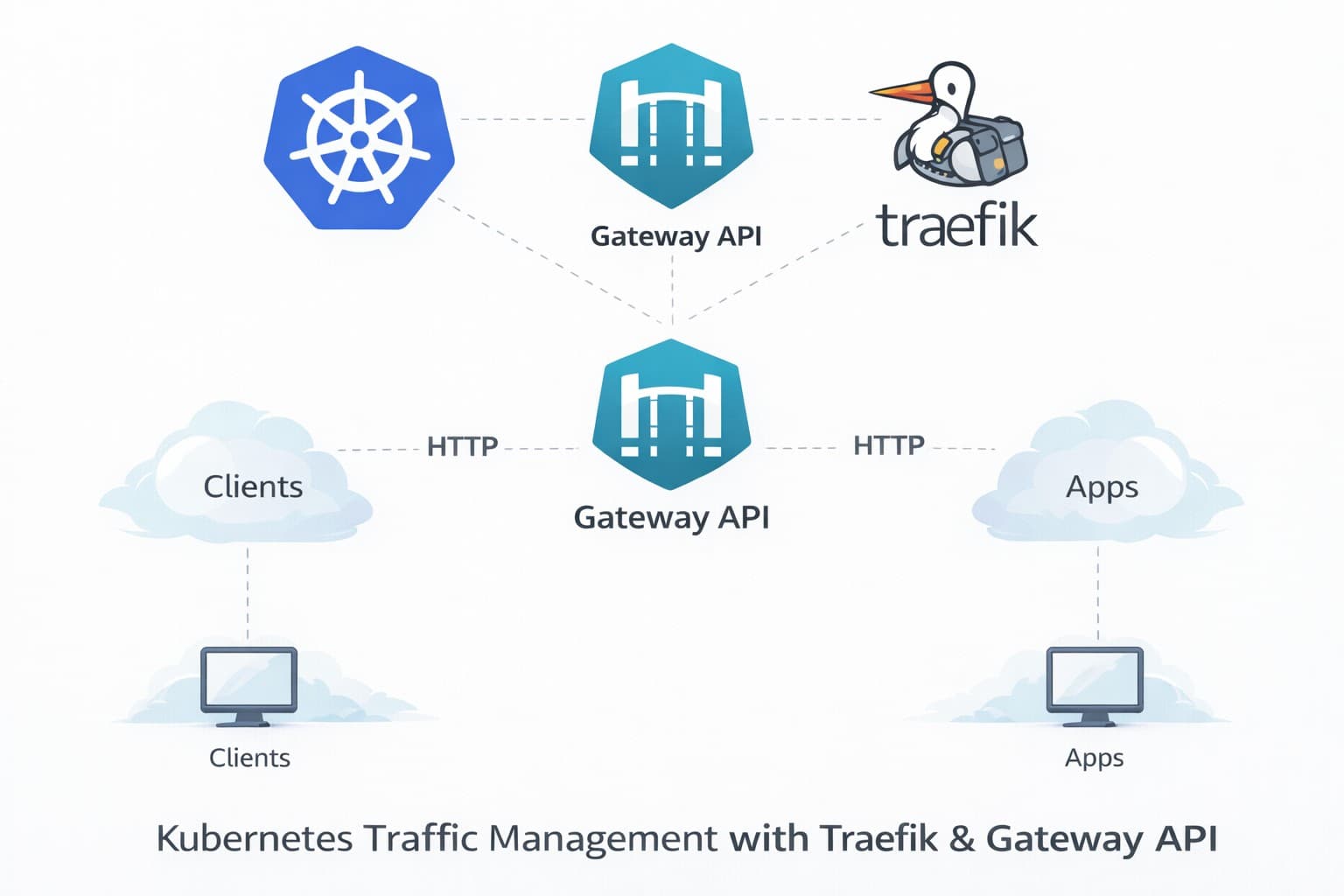
Overview
Now that the cluster is online (kubeadm + Calico) and persistent storage is handled by Longhorn, the next step is getting traffic into the cluster.
Historically, most Kubernetes setups used Ingress resources + an Ingress Controller. That still works, but the more modern (and future-facing) approach is the Gateway API, which provides a cleaner model (GatewayClass, Gateway, HTTPRoute) and a better long-term path for Kubernetes networking.
In this post we’ll:
- Install the Gateway API CRDs
- Deploy Traefik as a Gateway controller
- Create a
GatewayClassandGateway - Publish a test app using
HTTPRoute - Validate access from your network (homelab-friendly)
Cluster Assumptions
- 1 control plane + 2 worker nodes
- Nodes are reachable on your homelab VLAN (VLAN 30 in my case)
- Calico is running and all nodes are
Ready - No MetalLB (yet)
We’ll keep this simple and use NodePort for now. Later, we can upgrade to MetalLB for true LoadBalancer services.
Install Gateway API CRDs
The Gateway API is a set of Kubernetes Custom Resource Definitions (CRDs) that define resources like Gateway, GatewayClass, HTTPRoute, etc. Think of it as the "interface" or "specification" for modern Kubernetes ingress.
Gateway API itself doesn't route traffic - it just defines the resources. You need a Gateway Controller (like Traefik, Envoy Gateway, or Istio) to actually implement the routing behavior.
Install the Standard channel Gateway API CRDs:
kubectl apply --server-side -f https://github.com/kubernetes-sigs/gateway-api/releases/download/v1.4.1/standard-install.yaml
Verify they exist:
kubectl get crds | grep gateway.networking.k8s.io
You should see several CRDs including:
gatewayclasses.gateway.networking.k8s.iogateways.gateway.networking.k8s.iohttproutes.gateway.networking.k8s.io
Gateway API vs Gateway Controller:
- Gateway API = The CRDs (resource definitions)
- Gateway Controller (Traefik/Envoy/Istio) = The implementation that watches these resources and routes traffic
You need both! The Gateway API provides the resources, and Traefik provides the controller that makes them work.
Install Traefik (Gateway Controller)
Now we install Traefik, which is a Gateway API controller that will watch for Gateway/HTTPRoute resources and route traffic accordingly.
Install Helm (if needed)
Helm is not in Ubuntu's default repositories. Add the official Helm repository:
# Install prerequisites
sudo apt-get install curl gpg apt-transport-https --yes

# Add Helm GPG key
curl -fsSL https://packages.buildkite.com/helm-linux/helm-debian/gpgkey | gpg --dearmor | sudo tee /usr/share/keyrings/helm.gpg > /dev/null

# Add Helm repository
echo "deb [signed-by=/usr/share/keyrings/helm.gpg] https://packages.buildkite.com/helm-linux/helm-debian/any/ any main" | sudo tee /etc/apt/sources.list.d/helm-stable-debian.list

# Install Helm
sudo apt-get update
sudo apt-get install helm
Verify the installation:
helm version
Add the Traefik chart repo
helm repo add traefik https://traefik.github.io/charts
helm repo update
Install Traefik
Install Traefik with the Gateway API provider enabled and specific NodePort values:
helm install traefik traefik/traefik \
  --namespace traefik \
  --create-namespace \
  --set providers.kubernetesGateway.enabled=true \
  --set service.type=NodePort \
  --set ports.web.nodePort=30080 \
  --set ports.websecure.nodePort=30443
This configuration:
- Enables the Kubernetes Gateway provider
- Exposes Traefik via NodePort on ports
30080(HTTP) and30443(HTTPS) - Keeps the installation minimal and homelab-friendly
Verify the service has the correct ports:
kubectl get svc -n traefik
You should see 80:30080/TCP,443:30443/TCP in the PORTS column.
Watch pods come up:
kubectl get pods -n traefik -w
Create a GatewayClass
Traefik will watch for a GatewayClass that references its controller string.
First, check if Traefik already created one:
kubectl get gatewayclass
If you see a traefik GatewayClass already exists, you can skip this step. Otherwise, create gatewayclass.yaml:
cat <<EOF > gatewayclass.yaml
apiVersion: gateway.networking.k8s.io/v1
kind: GatewayClass
metadata:
  name: traefik
spec:
  controllerName: traefik.io/gateway-controller
EOF
Apply it:
kubectl apply -f gatewayclass.yaml
kubectl get gatewayclass
If you see a warning about missing kubectl.kubernetes.io/last-applied-configuration annotation, this is harmless - it just means the resource was created by Traefik during installation rather than via kubectl apply. The annotation will be added automatically and future applies will work without warnings.
Create a Gateway (Listener)
Now we define where traffic enters the cluster.
Create gateway.yaml:
cat <<EOF > gateway.yaml
apiVersion: gateway.networking.k8s.io/v1
kind: Gateway
metadata:
  name: homelab-gateway
  namespace: default
spec:
  gatewayClassName: traefik
  listeners:
    - name: http
      protocol: HTTP
      port: 8000
      allowedRoutes:
        namespaces:
          from: Same
EOF
Why port 8000?
Traefik's default "web" entryPoint listens on port 8000 internally (exposed as port 80 via the Service NodePort). The Gateway must reference Traefik's internal entryPoint port (8000), not the external NodePort (30080).
Apply it:
kubectl apply -f gateway.yaml
kubectl get gateway
Verify it's programmed:
kubectl get gateway homelab-gateway -o wide
You should see PROGRAMMED: True.
Deploy a Test App (whoami)
We'll use the official Traefik whoami test application. Create the deployment and service:
kubectl create deployment whoami --image=traefik/whoami:v1.10.3
kubectl expose deployment whoami --port=80
Verify it's running:
kubectl get pods -l app=whoami
kubectl get svc whoami
Want to see which node the pod is running on?
The -o wide flag shows additional columns including the node name and pod IP. This is useful for troubleshooting networking issues or verifying pod placement across your worker nodes.
kubectl get pods -l app=whoami -o wide
Create an HTTPRoute
Now we route traffic from the Gateway to the Service.
Create httproute.yaml:
cat <<EOF > httproute.yaml
apiVersion: gateway.networking.k8s.io/v1
kind: HTTPRoute
metadata:
  name: whoami-route
spec:
  parentRefs:
    - name: homelab-gateway
  hostnames:
    - "whoami.k8s.local"
  rules:
    - matches:
        - path:
            type: PathPrefix
            value: /
      backendRefs:
        - name: whoami
          port: 80
EOF
Apply it:
kubectl apply -f httproute.yaml
kubectl get httproute
Access the App (NodePort)
Because we used NodePort, you can hit Traefik via any node IP (usually a worker node).
Example:
http://<worker-node-ip>:30080
To use the hostname (whoami.k8s.local) from your laptop, add a temporary hosts file entry:
<worker-node-ip> whoami.k8s.local
Then browse:
http://whoami.k8s.local:30080
You should see the whoami response page.
This hosts-file approach is just for early testing. In a later post we can add "real" local DNS for *.k8s.local and optionally MetalLB so services can use LoadBalancer.
Troubleshooting Access Issues
If you can't reach the service, work through these checks:
1. Verify Traefik is listening on port 30080:
kubectl get svc -n traefik
You should see 80:30080/TCP,443:30443/TCP in the PORTS column for the traefik service.
2. Check which node Traefik is running on:
kubectl get pods -n traefik -o wide
Note the NODE column. You can access Traefik on any node IP, but it's helpful to know where the pod is.
3. Test connectivity directly to the node:
# From your workstation
curl http://<worker-node-ip>:30080
If this times out, check:
- Firewall on the node:
sudo ufw status(should be inactive or allow port 30080) - Proxmox firewall: Check Datacenter → Firewall and VM → Firewall (should be disabled)
4. Verify the Gateway is programmed:
kubectl get gateway homelab-gateway -o yaml
Look for status.conditions - should show Ready: True and Programmed: True.
5. Check the HTTPRoute status:
kubectl get httproute whoami-route -o yaml
Look for status.parents[].conditions - should show Accepted: True and ResolvedRefs: True.
6. Test without hostname (direct to Traefik):
curl -v http://<worker-node-ip>:30080
If this returns a 404 from Traefik, it means Traefik is reachable but the routing isn't working. Then test with Host header:
curl -H "Host: whoami.k8s.local" http://<worker-node-ip>:30080
If this works, the issue is DNS/hosts file.
7. Check Traefik logs:
kubectl logs -n traefik -l app.kubernetes.io/name=traefik --tail=50
Look for errors related to Gateway or HTTPRoute configuration.
8. Verify the whoami service exists:
kubectl get svc whoami
kubectl get endpoints whoami
The endpoints should show the pod IP and port 80.
Validation Checklist
kubectl get gatewayclass
kubectl get gateway
kubectl get httproute
kubectl get svc -n traefik
kubectl get pods -n traefik
If the route isn’t working, check Traefik logs:
kubectl -n traefik logs deploy/traefik --tail=200
What’s Next
Now that inbound traffic is solved with Gateway API and Traefik, we can improve the networking setup further.
In the next post, we'll tackle two improvements:
- Local DNS for
*.k8s.local- Set up proper DNS resolution so you don't need hosts file entries - MetalLB - Enable true
LoadBalancerservices instead of NodePort, giving each service its own IP address
This will make accessing services much cleaner: instead of http://whoami.k8s.local:30080, you'll just use http://whoami.k8s.local.
➡️ Next: Kubernetes on Proxmox – Part 8: Local DNS and LoadBalancer with MetalLB
Real-World Platform Engineering in Your Inbox
One email a week. Deep dives on Kubernetes, homelab builds, platform tooling, and building in public from someone who does this for a living.
No fluff, no sponsored blasts. Unsubscribe any time.
Reach Engineers Who Build Platforms
My readers are Staff Engineers, Platform Engineers, and DevOps/SRE leads — the people who evaluate, buy, and recommend infrastructure tooling at their companies.
- → Sponsored posts, newsletter placements, and resource page features available
- → Audience: platform engineering, Kubernetes, GitOps, and homelab builders
- → Formats tailored to technical audiences — no generic ad copy
📚 Part of: Kubernetes Homelab
Related Posts
Kubernetes on Proxmox: Deploying Your First Real Application
Deploy a complete stateful application using persistent storage, ingress routing, and DNS in your homelab Kubernetes cluster.
Kubernetes on Proxmox: GitOps Automation with ArgoCD
Implement GitOps workflows for automated, declarative deployments using ArgoCD - manage your entire homelab from Git
Kubernetes on Proxmox: Secure Your Apps with HTTPS and cert-manager
Add automatic HTTPS with Let's Encrypt certificates using cert-manager, securing your Kubernetes applications with trusted SSL/TLS.